
Fast answer:
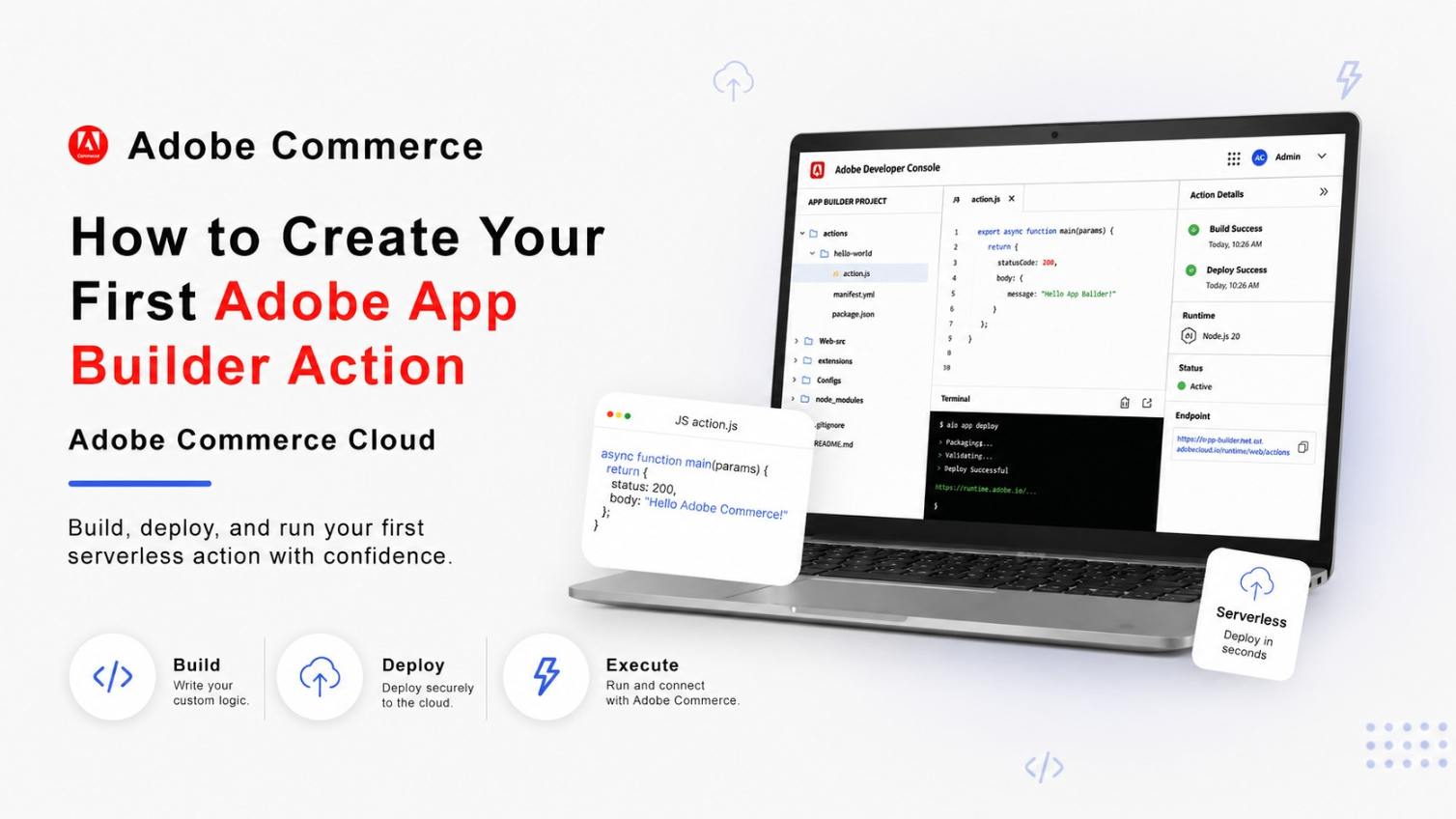
An Adobe App Builder Action is a small serverless function that runs on Adobe Runtime and executes only when something calls it. On Adobe Commerce as a Cloud Service, where you can’t touch the core application, Actions are how you process API requests, react to Commerce events, and talk to outside systems like an ERP or CRM. You write the function, register it in a config file, deploy it, and it sits there waiting to be invoked.
At Ethnic Infotech, we spend a good part of our week inside Adobe Commerce and Magento builds for international brands, and App Builder has become the default answer whenever a client asks “can we customize this without breaking the SaaS model.” This guide walks through building an Action from a blank project to a live, invokable endpoint.
The Problem With Customizing Adobe Commerce as a Cloud Service
If you’ve built on Adobe Commerce before ACCS existed, you already know the old workflow. Something needs to change, so you write a module, extend a class, or hook a plugin into core. Adobe Commerce as a Cloud Service closes that door entirely. There’s no server to SSH into and no core codebase you’re allowed to touch. Adobe manages upgrades and infrastructure on its side, and in exchange, you build everything else somewhere separate.
That “somewhere separate” is Adobe App Builder. Whether it’s syncing an order to an ERP the moment it’s placed, validating a discount code against an external loyalty system, or transforming a product feed before it lands in a marketplace, the pattern is the same: something in Commerce needs to talk to something outside Commerce, and an Action is the piece that makes that conversation happen.
What Is Adobe App Builder?
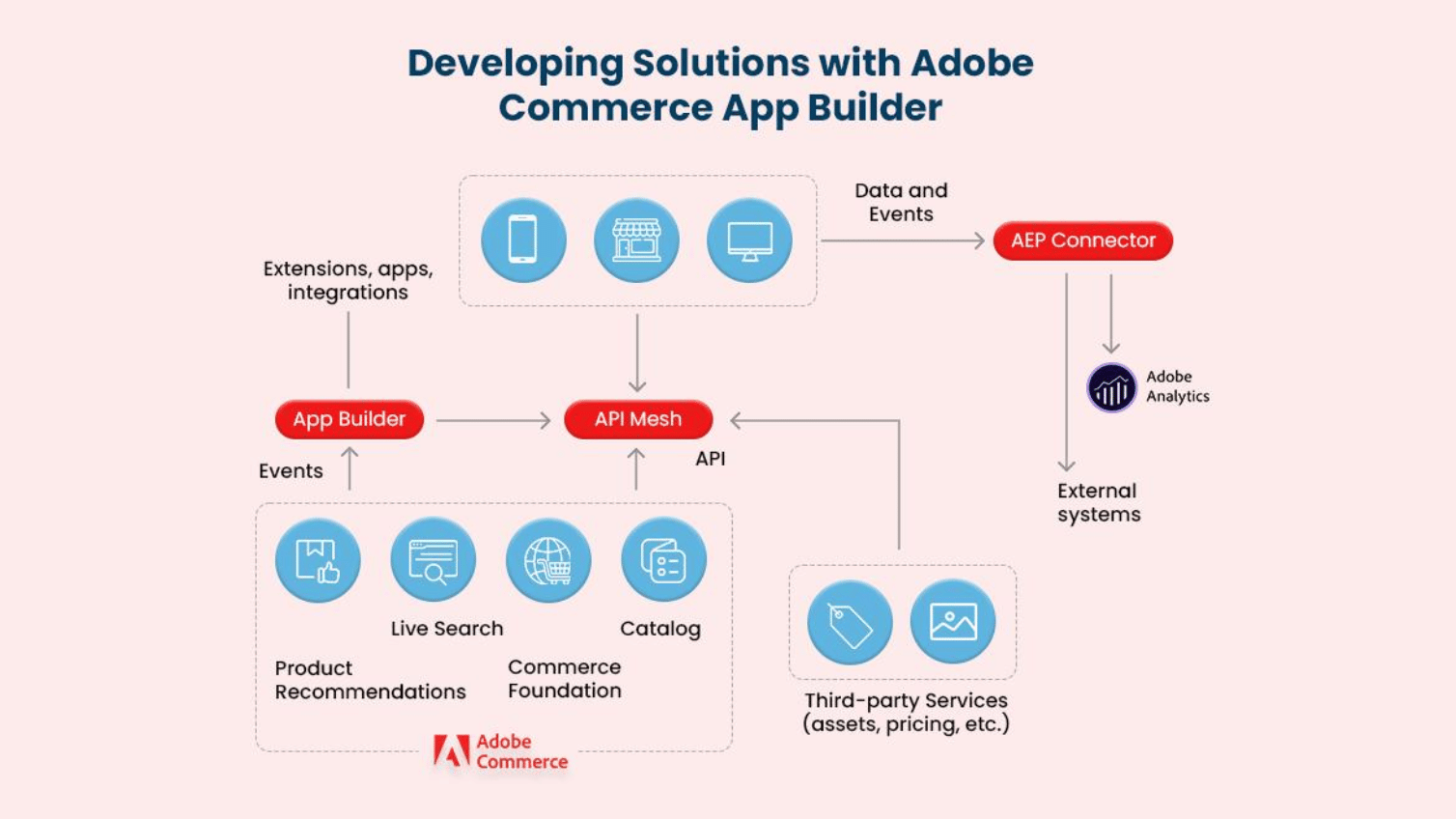
Adobe App Builder is Adobe’s serverless extensibility platform, and it’s the thing that replaces “writing a module” for anyone working on Adobe Commerce as a Cloud Service. It bundles together several services that used to require separate infrastructure:
- Runtime (serverless Actions)
- Events
- Webhooks
- API Mesh
- Adobe I/O CLI
- Storage
- Custom UI
Instead of running a server around the clock, developers write small serverless functions, Actions, that spin up on demand and shut down the moment they’re done. That’s the core idea behind App Builder serverless development, and it’s also why the billing model looks nothing like renting a VPS: you’re charged for execution, not for uptime.
What Is an Action?
An Action is a serverless function that runs on Adobe Runtime, which is built on Apache OpenWhisk. Unlike a traditional server that sits there listening around the clock, an Adobe Runtime action executes only when something invokes it, then disappears again.
A single Action can:
- Process API requests
- Call external services
- Handle Commerce events
- Validate business logic
- Transform data
- Send notifications
- Integrate third-party systems
Think of it as a small, disposable worker that wakes up, does exactly one job, and goes back to sleep. That’s genuinely the whole mental model, and once it clicks, most of App Builder stops feeling mysterious.
How an Action Actually Runs
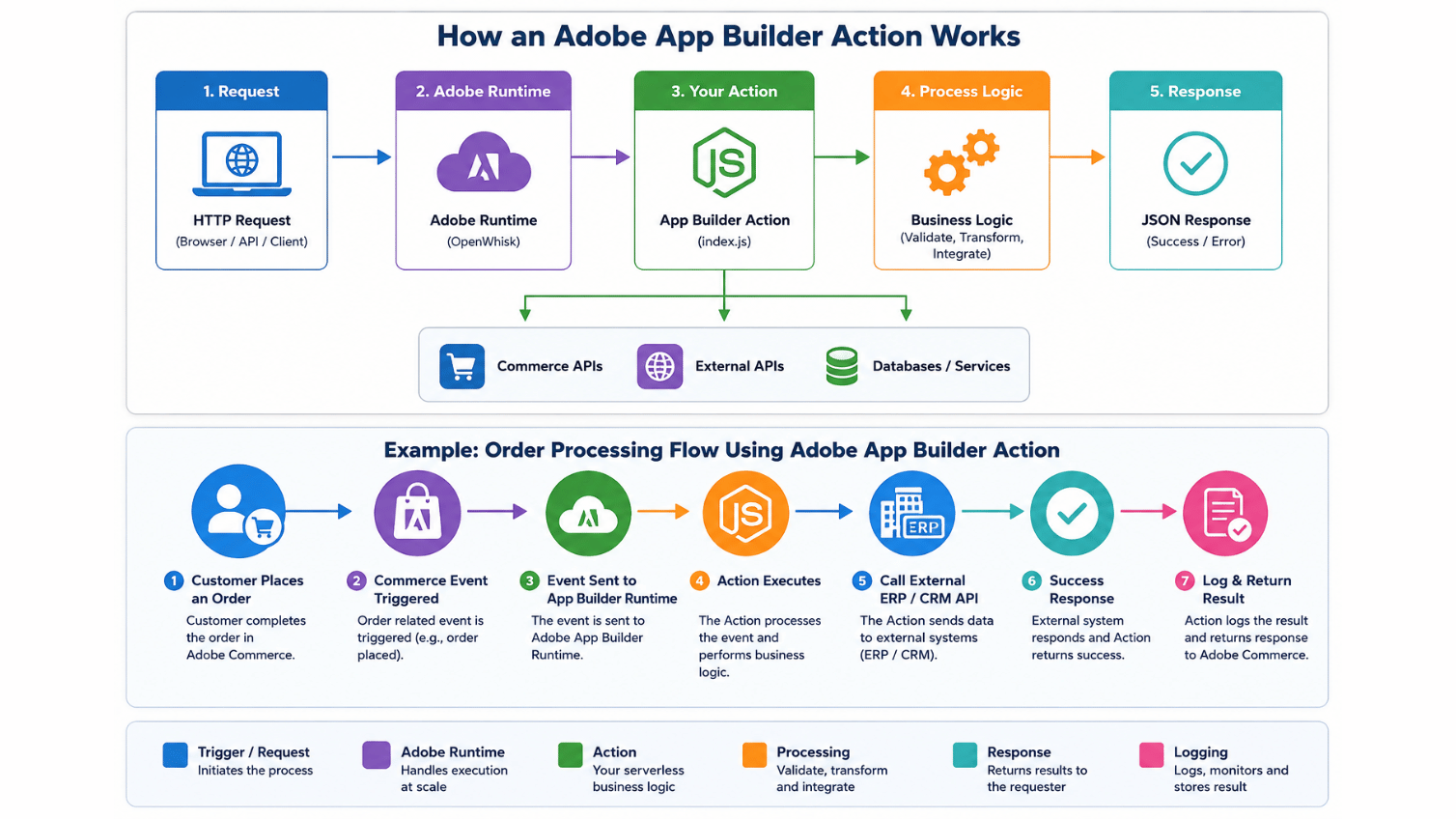
Strip away the terminology and the flow looks like this: a request comes in, Adobe Runtime picks it up, your Action code runs, the logic processes, and a response goes back out. For a real Commerce scenario, picture a customer placing an order. That triggers a Commerce event, which Adobe Runtime routes to your Action, which calls out to an ERP API, which sends back a success response that flows all the way to the customer.
That’s it. One event in, one response out, nothing sitting idle in between.
Prerequisites
Before creating an Action, make sure you actually have these ready, because half the setup headaches we see trace back to skipping this list:
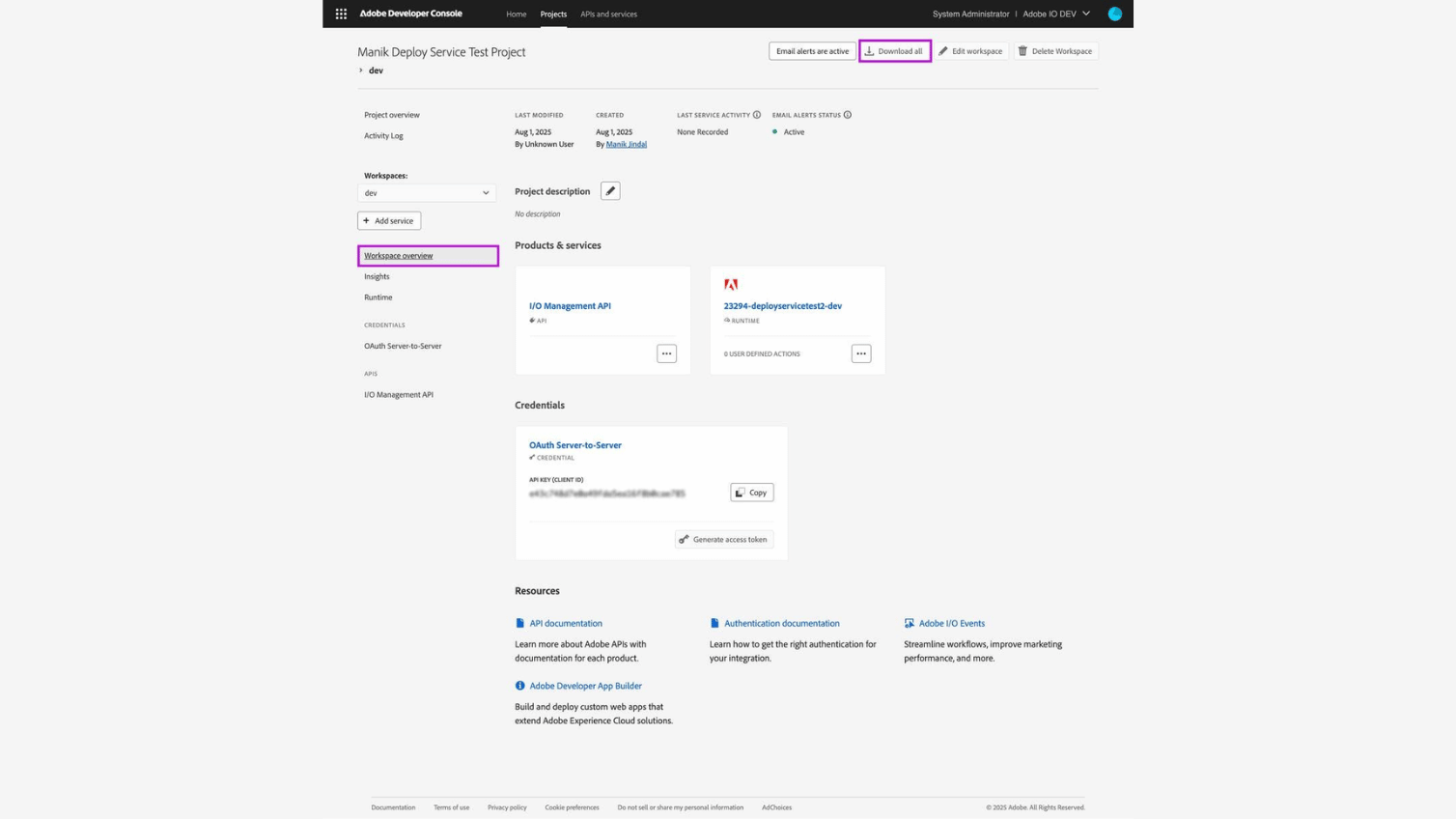
- Adobe Developer Console Project
- Adobe App Builder enabled
- Adobe I/O CLI installed
- Node.js 20 or later
- npm installed
- Git installed
- Runtime Workspace configured
Verify everything installed correctly before moving forward:
aio --versionnode -vnpm -v
If any of those commands come back empty or throw an error, fix that first. Chasing a deployment error later, when the real problem was a missing CLI install, wastes more time than the five minutes this check takes.
Step-by-Step: Building Your First Adobe App Builder Action
Step 1: Create a New App Builder Project
Run the init command:
aio app init my-first-app
When prompted, select:
- Template: App Builder
- Runtime: Yes
- Events: Optional
- Web Assets: Optional
Once the project is created, move into it:
cd my-first-app
Your project structure should look like this:
my-first-app/├── actions/├── web-src/├── app.config.yaml├── package.json└── manifest.yml
Step 2: Generate a New Action
Rather than relying on aio app add action, build the Action manually here. It takes an extra minute, but it’s worth it, because you actually see how Adobe App Builder registers an Action instead of trusting a scaffold you didn’t write.
Create the directory structure inside your project:
actions/└── hello-world/ └── index.js
Then add this to index.js:
exports.main = async (params) => { return { statusCode: 200, body: { success: true, message: "Hello from Adobe App Builder!", }, };};
That’s a complete, working Adobe App Builder Action. It returns a JSON response the moment it’s invoked, and there isn’t much more to it at this stage.
Step 3: Register the Action in app.config.yaml
Creating the file isn’t enough on its own. Adobe App Builder needs to know the Action exists, and that registration happens in app.config.yaml:
application: actions: actions runtimeManifest: packages: app-builder: license: Apache-2.0 actions: hello-world: function: actions/hello-world/index.js web: "yes" runtime: nodejs:20 inputs: LOG_LEVEL: debug
Quick breakdown of what each field is doing:
| Property | Description |
|---|---|
| hello-world | Name of the Action that gets deployed to Adobe Runtime |
| function | Path to the Action’s JavaScript file |
| runtime | The Node.js runtime environment |
| web | Makes the Action reachable over HTTP |
| inputs | Environment variables available inside the Action |
Your project should now look like this:
my-first-app/├── actions/│ └── hello-world/│ └── index.js├── app.config.yaml├── package.json├── manifest.yml└── web-src/
Step 4: Test the Action Locally
Start the local dev server:
aio app run
You’ll get a local URL back, something like:
http://localhost:9080/api/v1/web/default/hello-world
Open it in a browser and you should see:
{ "message": "Hello from Adobe App Builder!" }Don’t skip this step to save time. Testing locally before deployment is the single easiest way to catch a typo in app.config.yaml before it turns into a confusing deployment failure.
Step 5: Deploy the Action
Once local testing looks right, ship it:
aio app deploy
A successful run ends with something like:
✓ Runtime Action Deployed
Step 6: Get the Action URL
List everything currently deployed:
aio runtime action list
Then grab the public URL for your Action:
aio runtime action get hello-world
That returns a live endpoint, something like https://runtime.adobe.io/api/v1/web/namespace/hello-world, and from that point on, you can invoke it from Commerce webhooks, Commerce events, a REST client, Postman, a third-party app, or straight from a browser.
Passing Parameters and Returning JSON
Once the basic Action works, the next thing most developers want is dynamic input. Say a request comes in as:
GET https://runtime.adobe.io/api/v1/web/.../hello-world?name=Harsh
Update the Action to read that parameter:
exports.main = async (params) => { const name = params.name || "Guest"; return { statusCode: 200, body: { message: `Hello ${name}`, }, };};
That returns { “message”: “Hello Harsh” }, and the same pattern extends to any structured JSON response you need an Action to send back:
exports.main = async () => { return { statusCode: 200, body: { success: true, message: "Action executed successfully", timestamp: new Date(), }, };};
Error Handling
An Action that only handles the happy path is a liability once it’s live. Wrap the core logic in a try/catch and return a real status code on failure:
exports.main = async () => { try { // Business Logic return { statusCode: 200, body: { success: true, }, }; } catch (error) { return { statusCode: 500, body: { success: false, error: error.message, }, }; }};
This matters more on Commerce integrations than it might seem. If an ERP sync Action fails silently, you don’t find out until someone notices an order never made it across, which is a much worse conversation to have than a logged 500.
Ready to Build Custom App Builder Actions?
Build secure Adobe App Builder Actions that integrate Adobe Commerce with ERPs, CRMs, payment gateways, and third-party services using scalable serverless architecture and Adobe I/O Runtime.
Where This Actually Gets Used (Common Use Cases)
Adobe App Builder Actions show up constantly in real ACCS work, and the pattern tends to repeat across clients:
- Processing Commerce Webhooks
- Handling Adobe Commerce Events
- Syncing orders to ERP systems
- Inventory synchronization
- CRM integrations
- Payment gateway integrations
- Sending emails or SMS notifications
- Calling external REST APIs
- Data transformation
- Custom business logic
If you’ve already looked at webhook subscriptions in ACCS, the connection here is direct: we covered the Admin side of that setup in our guide to subscribing webhooks in Adobe Commerce as a Cloud Service, and the receiving endpoint on the other side of that webhook is, almost always, an Adobe App Builder Action like the one built above.
What Actually Happened on Our First Production Action
We built an ERP sync Action for a B2B Adobe Commerce client in 2025, and the first version worked perfectly in local testing, then started silently dropping orders in production within the first week. The cause wasn’t the Action code. It was that we’d deployed it without a timeout guard around the outbound ERP call, so when the ERP had a slow morning, our Action just hung until Adobe Runtime’s own execution limit killed it, no error logged anywhere useful.
We fixed it by wrapping the ERP call in its own timeout, logging every failure with the order ID attached instead of a generic error, and adding a lightweight retry queue using App Builder’s Storage service so a failed sync could be picked back up instead of vanishing. After that, missed syncs on that integration dropped to close to zero over the following month, and it became the template we now use for every ERP-facing Action.
Best Practices
Treat these less as suggestions and more as the difference between an Action that survives production and one that quietly fails during a busy sale:
- Keep each Action focused on a single responsibility
- Validate all incoming request parameters
- Use environment variables for secrets and API credentials
- Implement proper error handling and logging
- Return meaningful HTTP status codes and JSON responses
- Keep Actions lightweight and avoid unnecessary processing
- Test Actions locally before deploying to Adobe Runtime
If you’re deciding between an App Builder Action, a webhook subscription, or a full headless rebuild for the same ACCS project, our headless commerce development guide covers where each option actually fits.
Common Mistakes
These are the mistakes that come up most often with developers building their first Adobe App Builder Action:
Skipping local testing before deploying
aio app run exists specifically so a config typo shows up on your machine instead of in a failed production deployment. Teams that jump straight to aio app deploy end up debugging blind.
Treating an Action like a long-running server
Actions are built to start, do one job, and stop. Cramming heavy processing or long polling loops into a single Action fights the platform instead of working with it.
No error handling on external calls
An Action calling an ERP, CRM, or payment API without a try/catch and a timeout is one slow third-party response away from a silent failure, exactly like the ERP sync example above.
Hardcoding credentials instead of using inputs
Secrets belong in the inputs section of app.config.yaml, pulled from environment variables, never typed directly into the Action file.
Registering the Action but forgetting web: “yes”
Without that flag set, the Action deploys fine but isn’t reachable over HTTP, which usually shows up as a confusing 404 the first time someone tries to hit the endpoint.
FAQ
Q: What is an Adobe App Builder Action?
A: It’s a serverless function that runs on Adobe Runtime and executes only when invoked, used to process requests, handle Commerce events, and connect ACCS to external systems without touching core code.
Q: How do I create my first Adobe App Builder Action?
A: Init a project with aio app init, create an index.js inside an actions folder, register it in app.config.yaml, test locally with aio app run, then deploy with aio app deploy.
Q: Is Adobe App Builder free to use?
A: There’s a free tier for development and testing, but production usage is billed based on execution, not a flat subscription. Check the current Adobe Developer Console pricing for exact limits, since these change.
Q: Do I need to know Node.js to write an App Builder Action?
A: Mostly, yes. The default runtime here is Node.js 20, and that’s what most App Builder tutorials and starter templates assume, though other supported runtimes exist for specific cases.
Q: Is Adobe App Builder worth it for a small ACCS project?
A: Usually. Even a single Action, like a basic ERP sync or a webhook receiver, is often lighter to build and maintain than any workaround that tries to avoid App Builder entirely.
Q: Adobe App Builder Action vs a webhook, which one do I need?
A: They work together rather than competing. A webhook subscription is the Commerce-side trigger; the App Builder Action is almost always what sits on the receiving end of that webhook.
Q: Why is my deployed Action returning a 404 or timing out?
A: Usually one of three things: web: “yes” is missing from the config, the deployed URL doesn’t match what you’re calling, or an external call inside the Action is hanging without a timeout.
Q: Are App Builder Actions still the recommended approach for ACCS in 2026?
A: Yes. Adobe continues to build ACCS extensibility around App Builder, Events, and Webhooks together, and Actions remain the core building block underneath all three.
Conclusion
Adobe App Builder is genuinely the only supported path for extending Adobe Commerce as a Cloud Service, and an Action is the smallest, most reusable piece of that whole system. Once you’ve built one, tested it locally, deployed it, and hit it over HTTP, the pattern repeats for every real integration you’ll build after this: ERP sync, inventory checks, CRM updates, whatever your specific ACCS project actually needs.
Where to Go From Here
If you’re building this out for a real ACCS project rather than a tutorial, a few next reads worth having open: our guide to subscribing webhooks in Adobe Commerce as a Cloud Service for the Commerce-side trigger, our Adobe App Builder database configuration guide for when your Action needs to persist data instead of just passing it through, and our Adobe Commerce development services page if you’d rather have a team that builds this daily handle the integration for you. If you’re still weighing platforms entirely, our ecommerce replatforming guide is a useful next stop.
For the official reference material on the platform side, Adobe’s own App Builder documentation and Commerce Webhooks Overview are worth bookmarking alongside this guide.
Build Adobe Commerce integrations with confidence
Talk to Ethnic Infotech about Adobe Commerce development services.
Planning your next product, platform, or growth move?
Ethnic Infotech helps teams shape scalable software, sharper customer experiences, and content systems that support real business growth.